How to open your VideoID link in Safari on an iPhone (Quick Guide)
Vintegris
14 Oct 2026
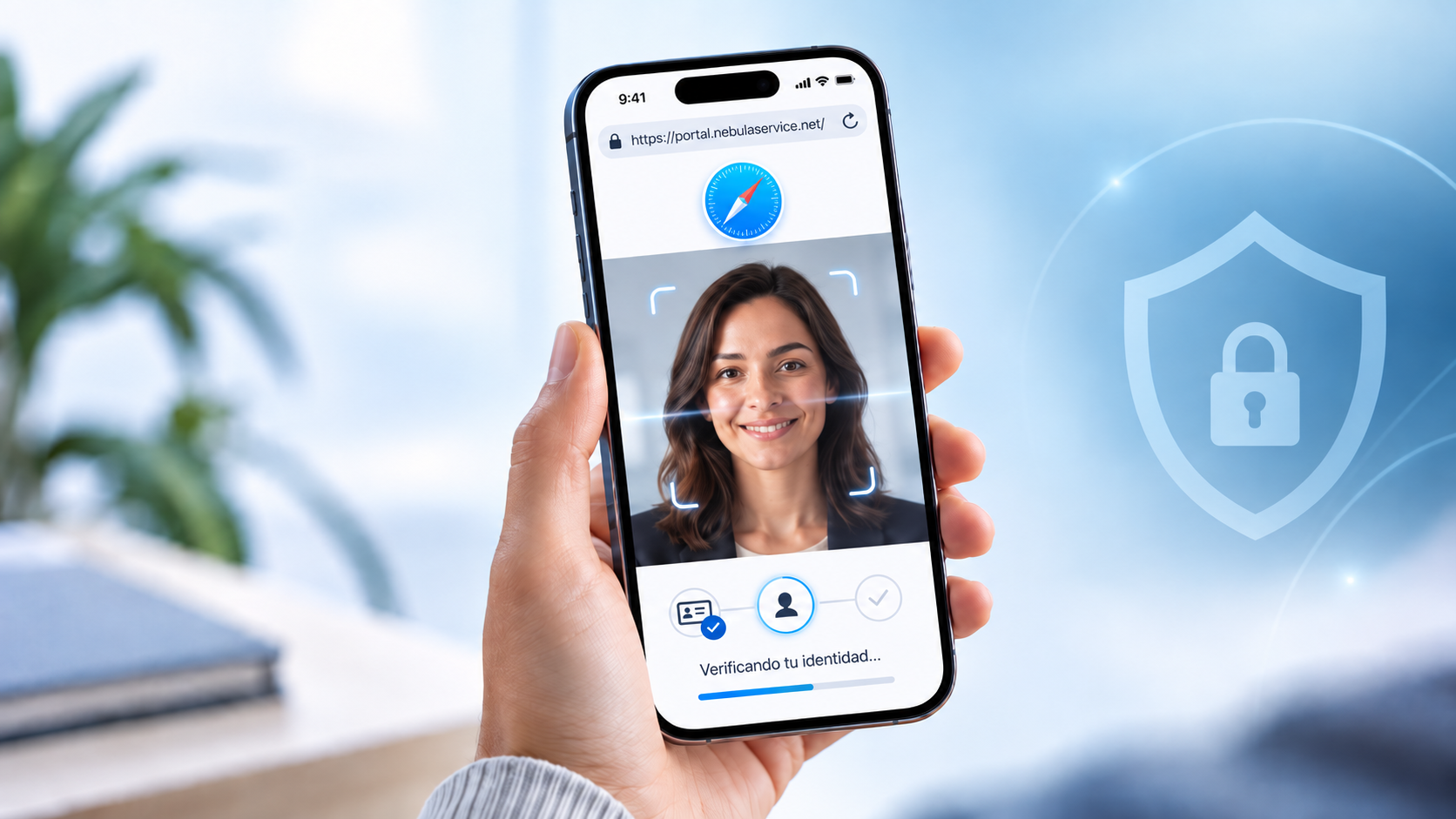
If you are completing your video identification process (VideoID) with víntegris using an iPhone or iPad, it is essential that you use the Safari browser.
Due to Apple (iOS) security restrictions, other browsers like Chrome or in-app browsers inside Gmail, WhatsApp, or Outlook may block access to your camera and microphone, preventing you from completing your identification.
Here are 3 quick ways to make sure you open the link in Safari before you start:
Option 1: Set Safari as Your Default Browser
If you have another browser (like Chrome) set as your default on your iPhone, you can switch it back to Safari by following these steps:
- Open the Settings app on your iPhone.
- Scroll down to your list of apps and tap on Safari (or your current default browser, like Chrome).
- Tap on "Default Browser App".
- Select Safari so that a blue checkmark appears next to it.
Option 2: The Press and Hold Trick (Fastest)
- Go to the email or WhatsApp message containing your VideoID link.
- Instead of tapping the link normally, press and hold it with your finger for two seconds.
- A pop-up menu will appear: select "Open in Safari" (or "Open Link" if Safari is already your default browser).
Option 3: Copy and Paste the Link
- Press and hold the link and select "Copy Link".
- Close your email or messaging app and open Safari (the blue compass icon) on your iPhone.
- Tap the address bar, select "Paste and Go" (or paste the link and tap "Go").
💡 Extra tip before you begin: When Safari prompts you to allow access to your Camera and Microphone, make sure to tap "Allow". You are now ready to get your digital certificate with víntegris!